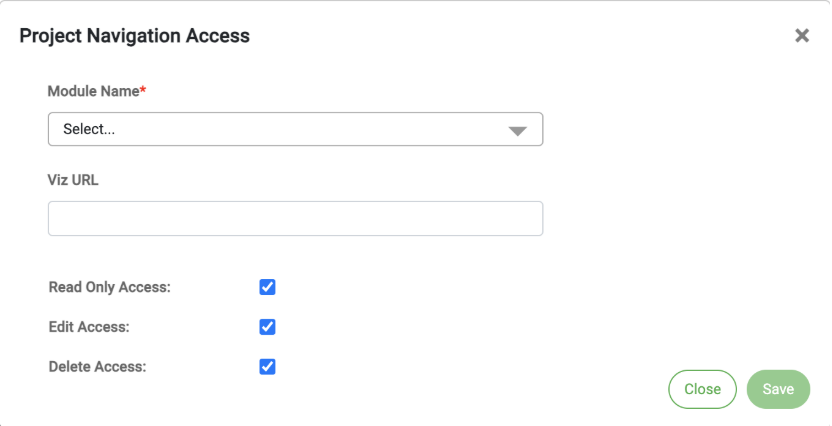
Users with administrator access have the ability to configure permissions and navigation of specific users/roles for a given project. You may edit the navigation permissions at a role level and/or at a project level in the konaAI application, giving you the flexibility to assign multiple users to work on different tasks simultaneously.
Navigation Access
Users added to the application have one or more of the following navigation permissions, based on the role they have been assigned.
Read-only access - the user can view or read project information but cannot make changes.
Edit access - user can edit and modify project elements.
Delete access - user can delete actions performed.
Refer to the user management section to understand how to add a user and assign a role.
Project Access
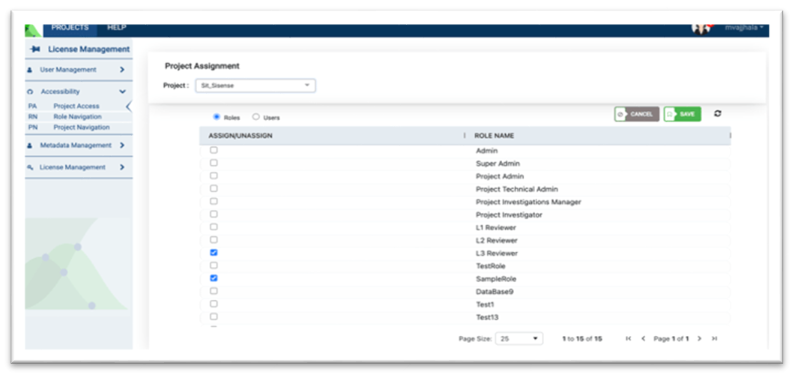
When a project is created, you must first assign roles to the project to dictate the tasks you wish a user to perform. Based on the role assigned, users can upload data, analyse it, infer the findings and/or manage the data.
Select Project Access from the left navigation menu.
Select the project name from the dropdown under “Project Assignment”.
Click on “roles” to edit which user role can access the project.
All people assigned to the selected roles can now access the project.
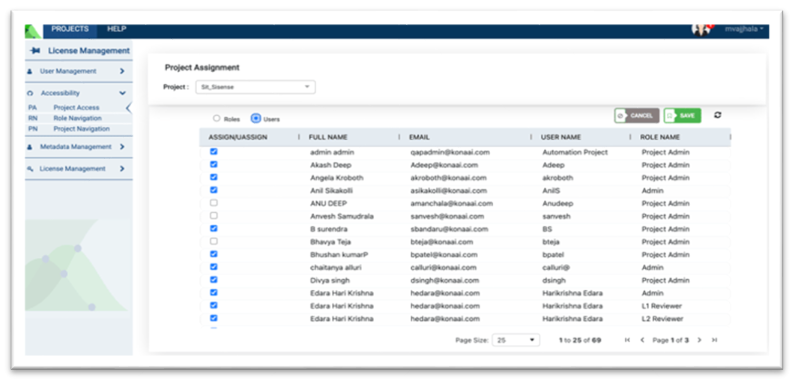
Alternatively, click on “Users” tab to assign/unassign individual users to specific projects.
You can also modify the role permissions at the user level, thereby controlling the actions they can perform.
Role Navigation
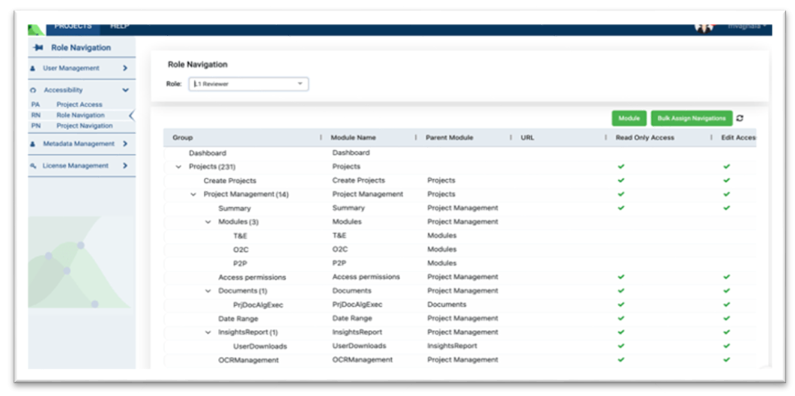
The role navigation feature of the konaAI application lets you modify the functions a specific role can perform in the application. A modification made to the role navigation in this tab is automatically applied across all projects on the konaAI application, containing the assigned role.
Ex: If you restrict the role L1 reviewer to only view data, all projects containing the L1 reviewer role can now only view data. The edit/delete functions will not be available, unless selected at the role navigation.
Module Access
The green “Module” button on your screen lets the admin add the portfolios they wish the project to contain. When any new portfolios/categories are added to the project, the admin must modify their access permissions in this section for users to view, edit or delete data.
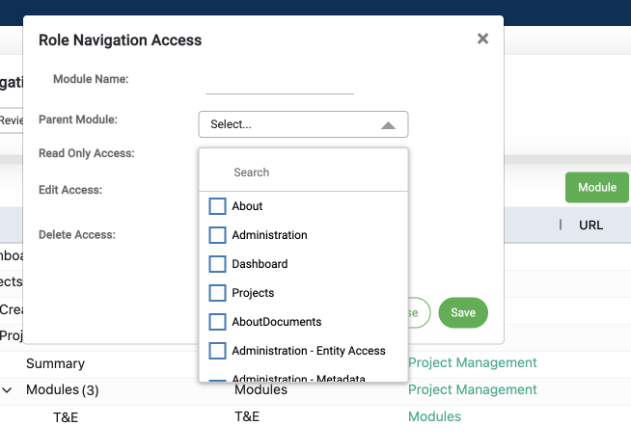
Click on the module button
Give a module name
Select the parent module that the new category is associated with.
Select appropriate permissions to control project navigation for the new category added.
All modifications made on this page are reflected across all projects added to konaAI.
To modify project specific navigation and access, refer to “Project Navigation” and “Project Access”.
Bulk Assign Navigation
konaAI provides the flexibility to modify role permissions for select categories or edit the functionality for an entire portfolio.
Go to “Role Navigation” in the left menu.
Select the role you wish to see in the dropdown provided.
You may now edit the access permissions to the different project portfolios.
You can edit the navigation for an entire portfolio or for select categories you wish users to access.
Editing access to the parent portfolio will automatically modify permissions across all the categories nested within.
Ex: If you remove access to the portfolio “Data Management”, the access will be automatically revoked for the categories “Data Select and Data Import”.
Any changes made at the role level will automatically apply to all users assigned to that role.
Project Navigation
konaAI also lets you modify navigation and role access at the project level. Modifications made in this tab are only applicable for the selected project and will not be reflected in other projects added to the konaAI application.
Go to Project Navigation on the left menu.
Select the role you wish to edit in the first dropdown.
The associated projects will now be displayed in the second dropdown.
Only projects with the selected role added to it at the time of creation are displayed in the dropdown.
Click submit to see the list of project features in a grid format on your work area.
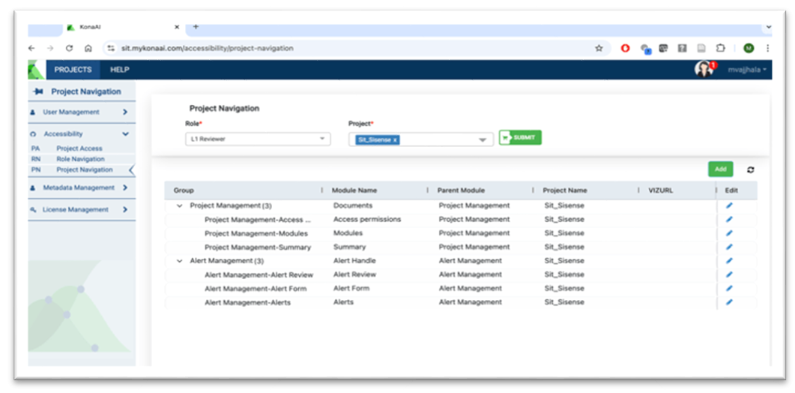
Click the edit option in the right column to modify the accessibility permissions.
You may choose between “Read-only, Edit or Delete” options.
You can edit the navigation for an entire portfolio or for select categories you wish users to access.
Editing access to the parent portfolio will automatically modify permissions across all the categories nested within.
Click on “Save” once you modify the permissions.
The changes made will be applicable for all users assigned to that role.
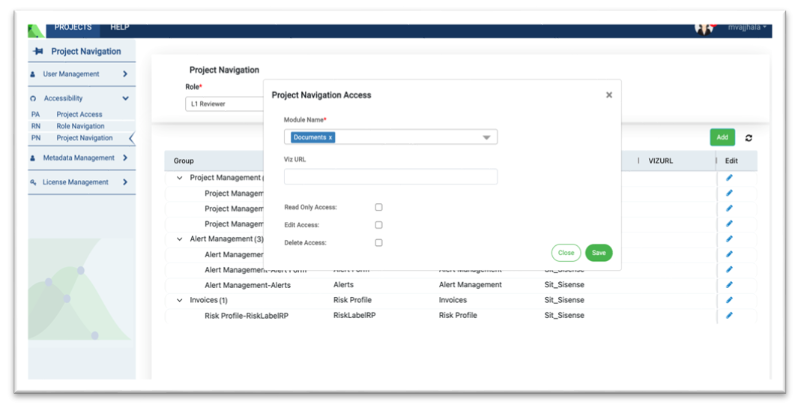
The green “Add” button can be used to add specific portfolios to your project.
You can modify the accessibility permissions when a new portfolio is added to a project.
Any changes made to this section are project specific and will not be relfected across any other projects you access through the konaAI application.