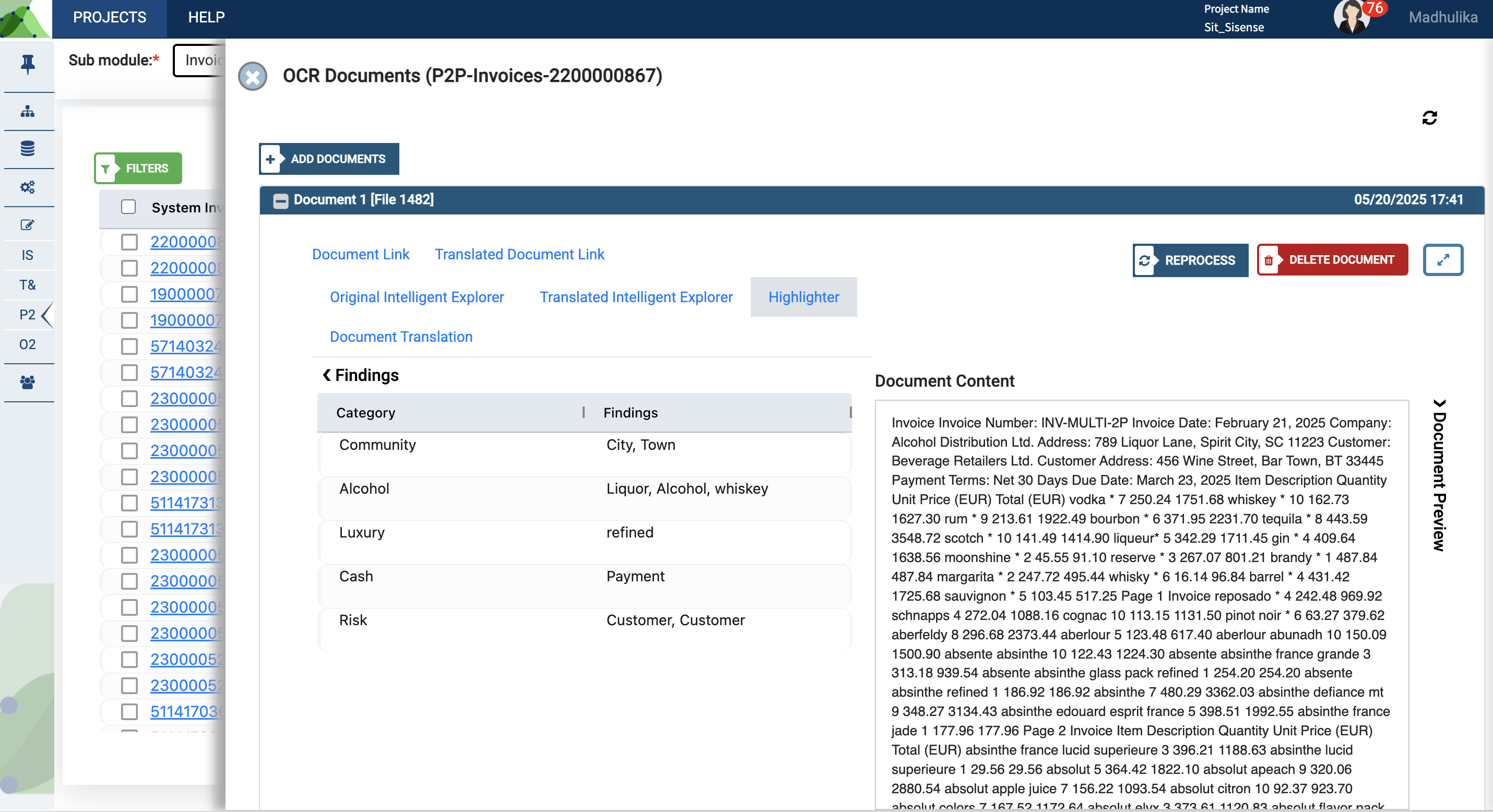
OCR (Optical Character Recognition) is a technology that converts printed or handwritten text from images or documents into digital, editable formats. It streamlines data extraction, improves document accessibility, and eliminates manual entry, making information more accessible and efficient.
konaAI seamlessly translates and analyzes your transaction receipts, vendor invoices, and any other payment related images. Our expansive keyword list is then used to identify potentially risky or fraudulent transactions and flags them for further investigation.
Access the OCR Features
Login into your konaAI profile and navigate to your desired project.
Select the portfolio ‘Insights’ in the left navigation menu.
Select the desired sub-module from the dropdown in the top banner.
Navigate to the ‘Transaction View’ from the top navigation bar.
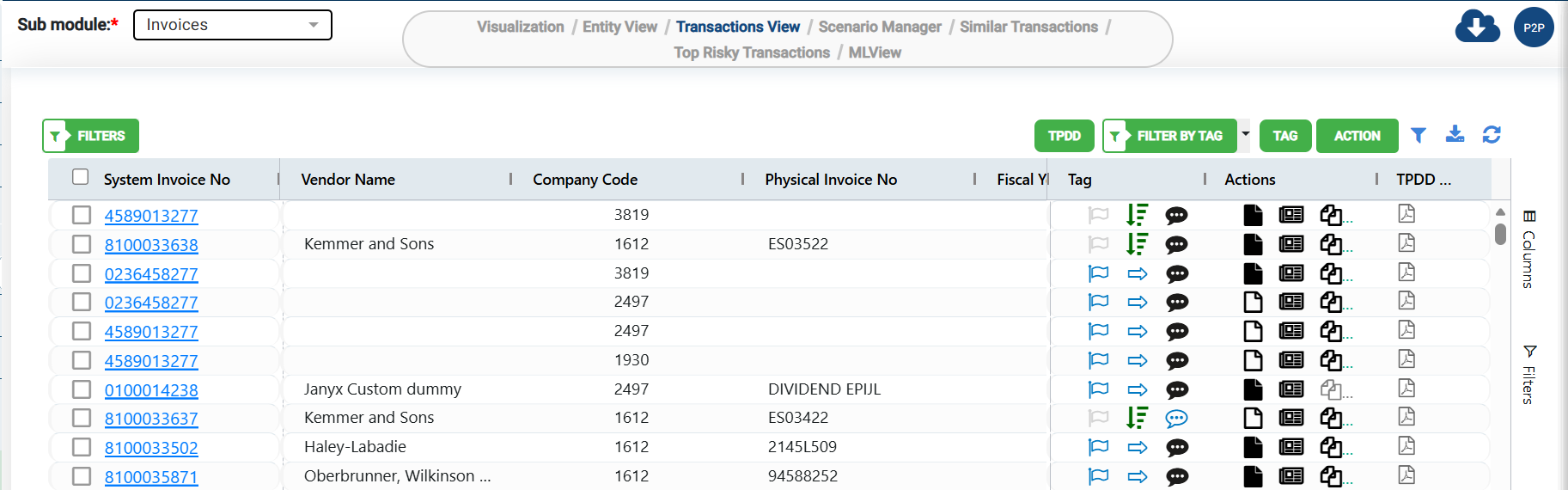
The document icon under the ‘Actions’ column lets you view/add OCR documents for an invoice.
A solid black file icon indicates that a document has already been uploaded, while the white file icon indicates that no document has been uploaded.
View/Upload Documents
Navigate to the Transaction view tab of your selected module.
Click on the solid black file icon under the Actions column to view the existing OCR documents for a specific invoice.
You will be taken to a new screen where the list of uploaded OCR documents will be shown.
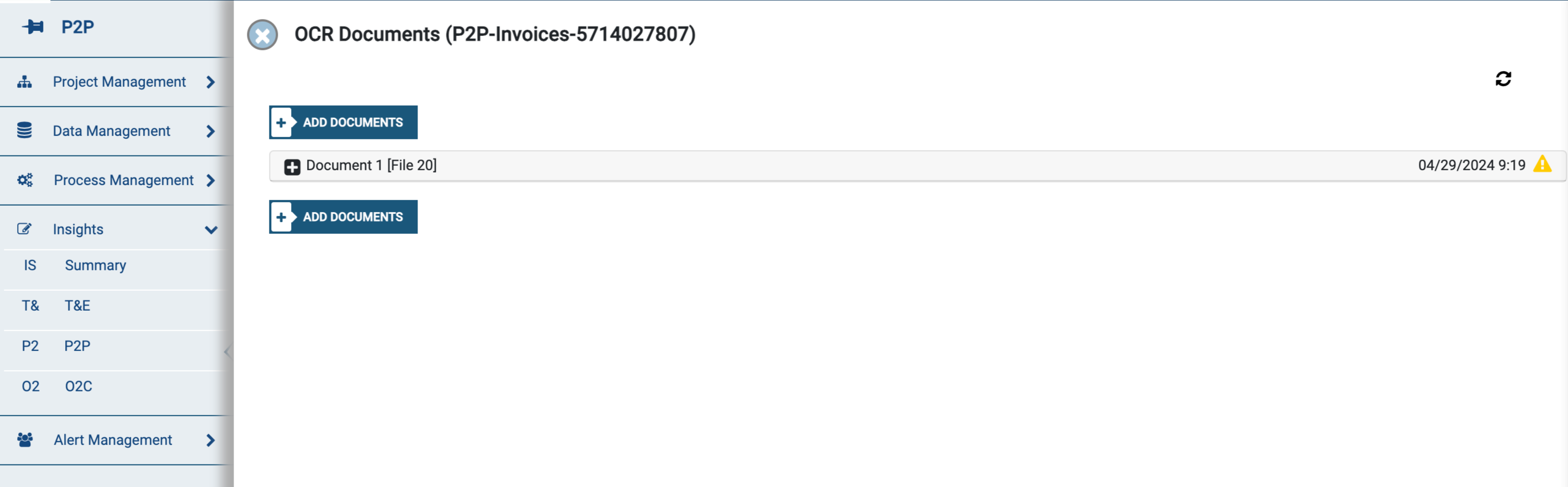
You may view the uploaded OCR documents here or upload new documents.
Click on the ‘Add documents' option to add new OCR documents.
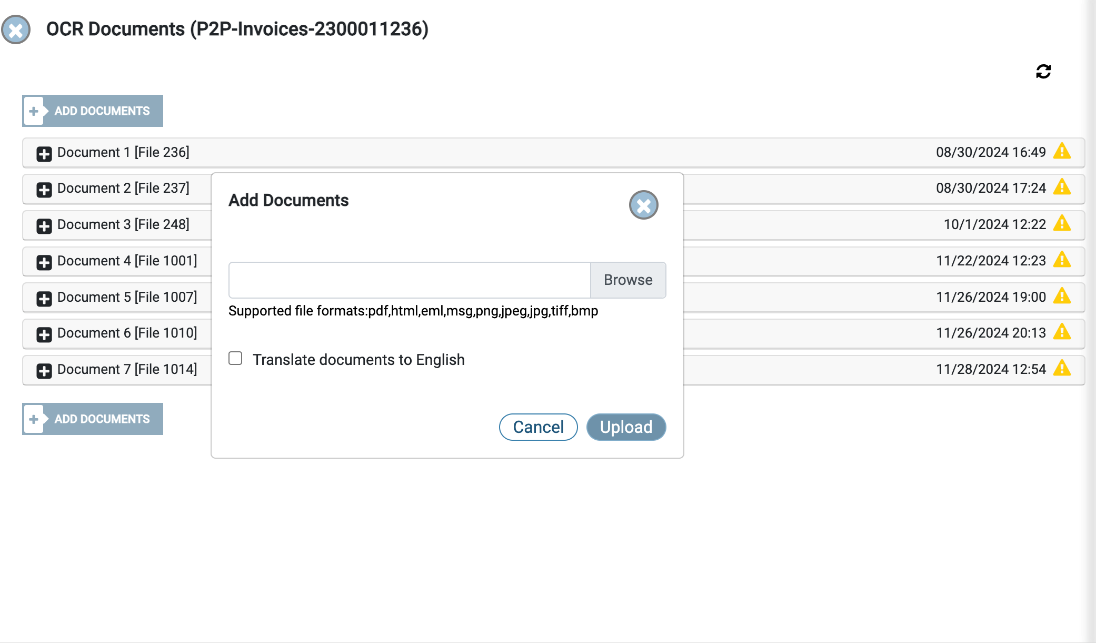
Once a document has been uploaded, you will receive a pop-up message on your screen confirming the action.
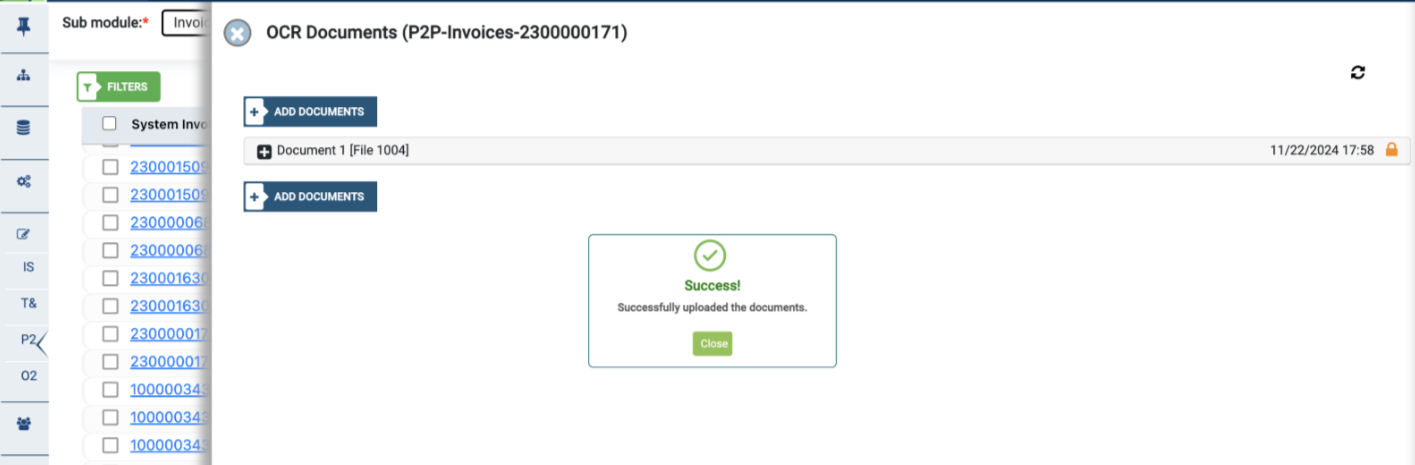
The lock icon after upload indicates that your document is currently being processed.
Until the lock icon changes to an exclamation symbol, you will be restricted in the actions that you can perform.
Select the refresh button to access the uploaded document.
You may delete the document after uploading by clicking on the ‘Delete’ button in the top-right corner of the document workspace.
Once a document has been uploaded to the konaAI application for OCR analysis, it is converted into a pdf format and automatically translated for keyword evaluation and data analysis.
Users will see a note on their screen indicating when a document has been translated. Additionally, the file name is displayed as the heading of the accordion, permitting users to view which files have been uploaded for a selected transaction.
Note: The konaAI platform supports several document formats giving you the flexibility to upload different kinds of files. Refer to supporting documents to understand what OCR files can be uploaded to the konaAI application.
Bulk Upload
The “Transactions View” tab lets you upload more than one document at a time, letting you execute bulk uploads.
Click on the green ‘Action’ button in the top right corner of the table displayed on your screen.
Select ‘Bulk Upload’ from the drop-down list.
This displays the list of all documents uploaded previously through bulk upload.
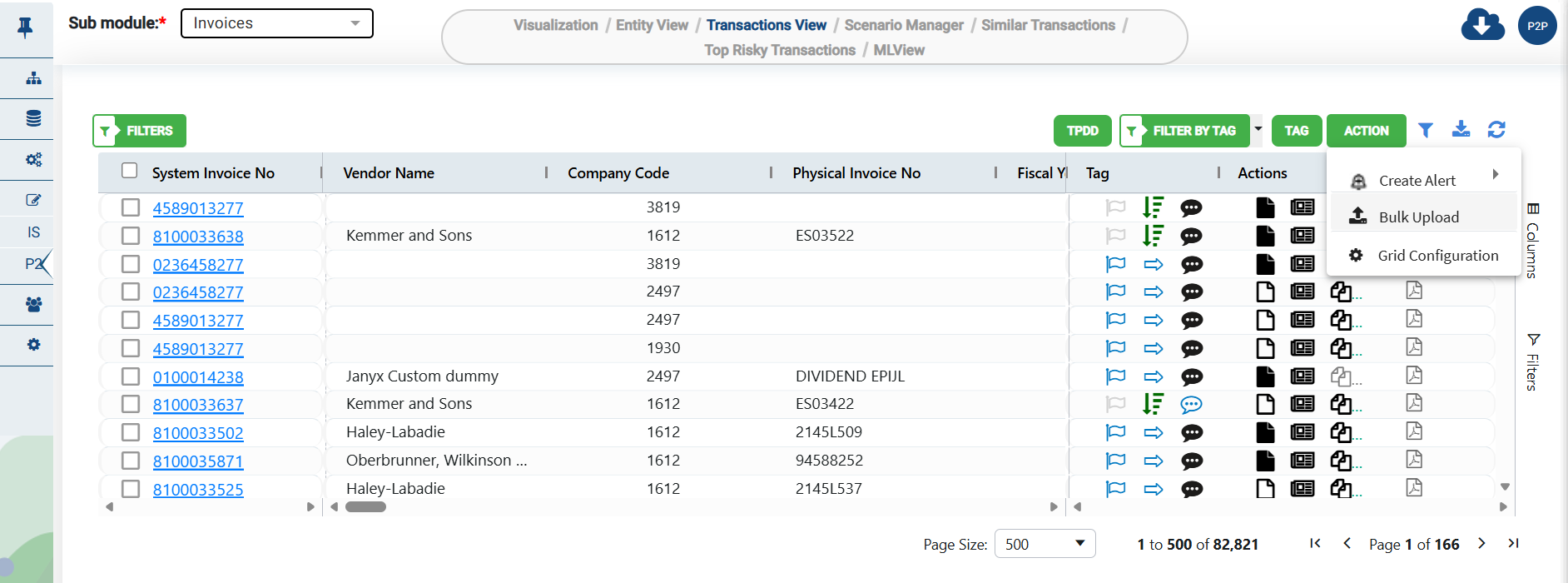
To execute a new bulk upload, download the template given on the screen.
Input all relevant information in the provided template and upload it to the konaAI application.
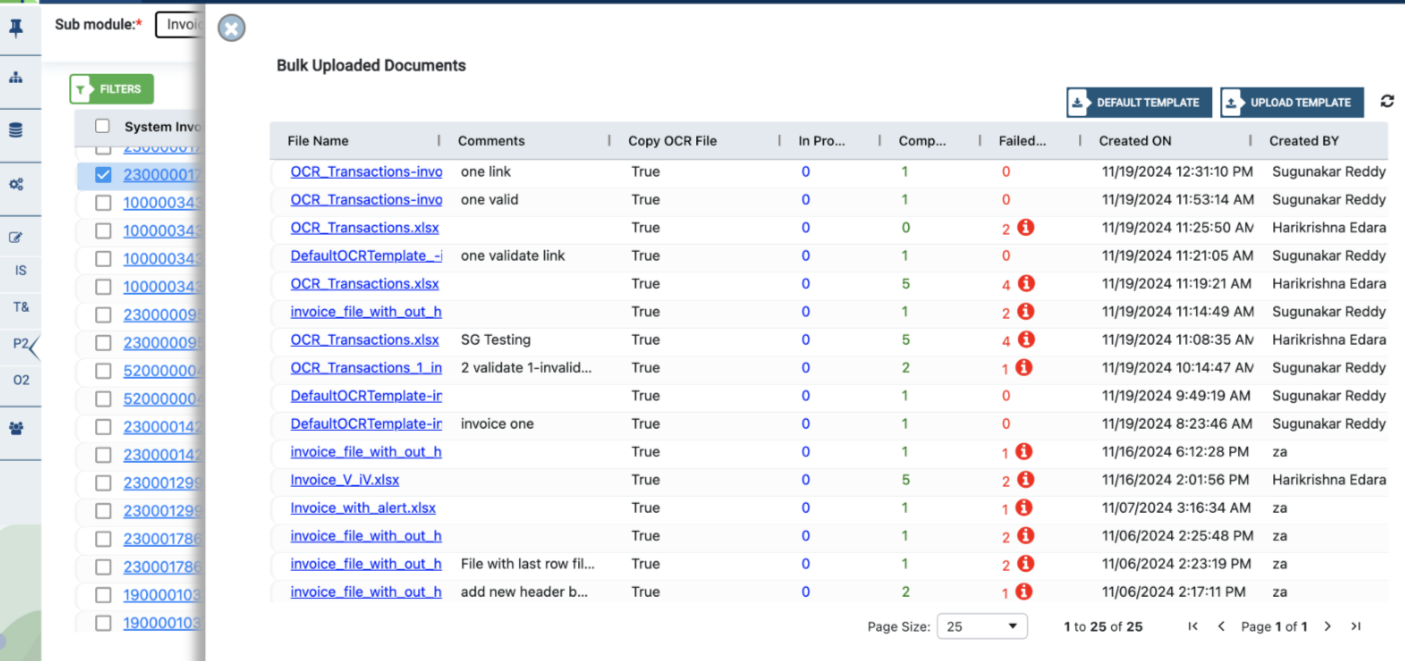
Note: Only konaAI templates provided in an excel format can be used to execute bulk upload.
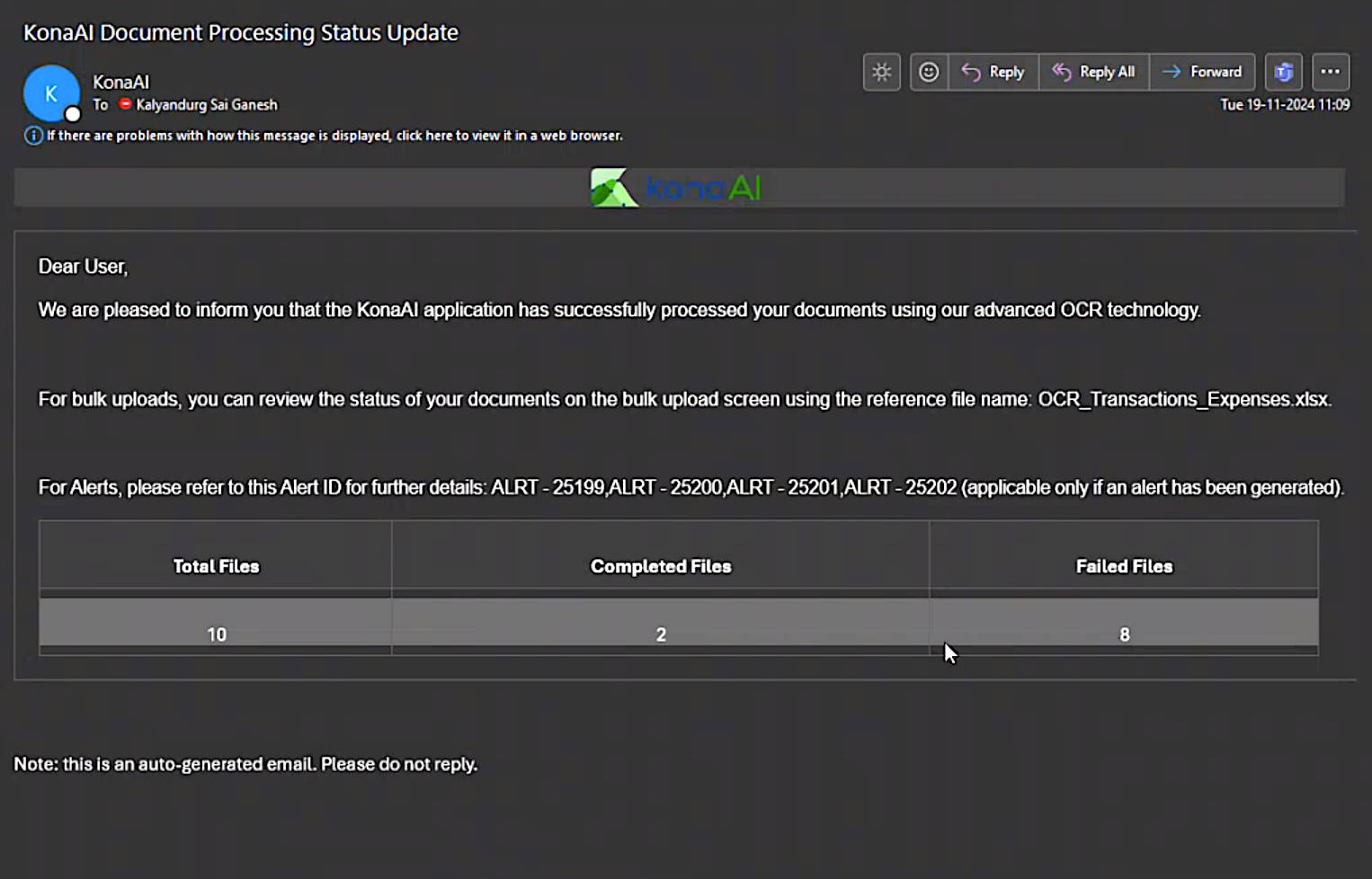
You will receive an email once the bulk upload has been initiated and another one after the documents have been uploaded.
The email provides a summary of the total number of uploads along with the number of completed and failed uploads.
The grid displays all uploaded files and indicates the upload status.
Clicking on the
 icon in the failed column on the konaAI application will provide insights into why the data could not be uploaded and extracted.
You may re-attempt uploading a failed file.
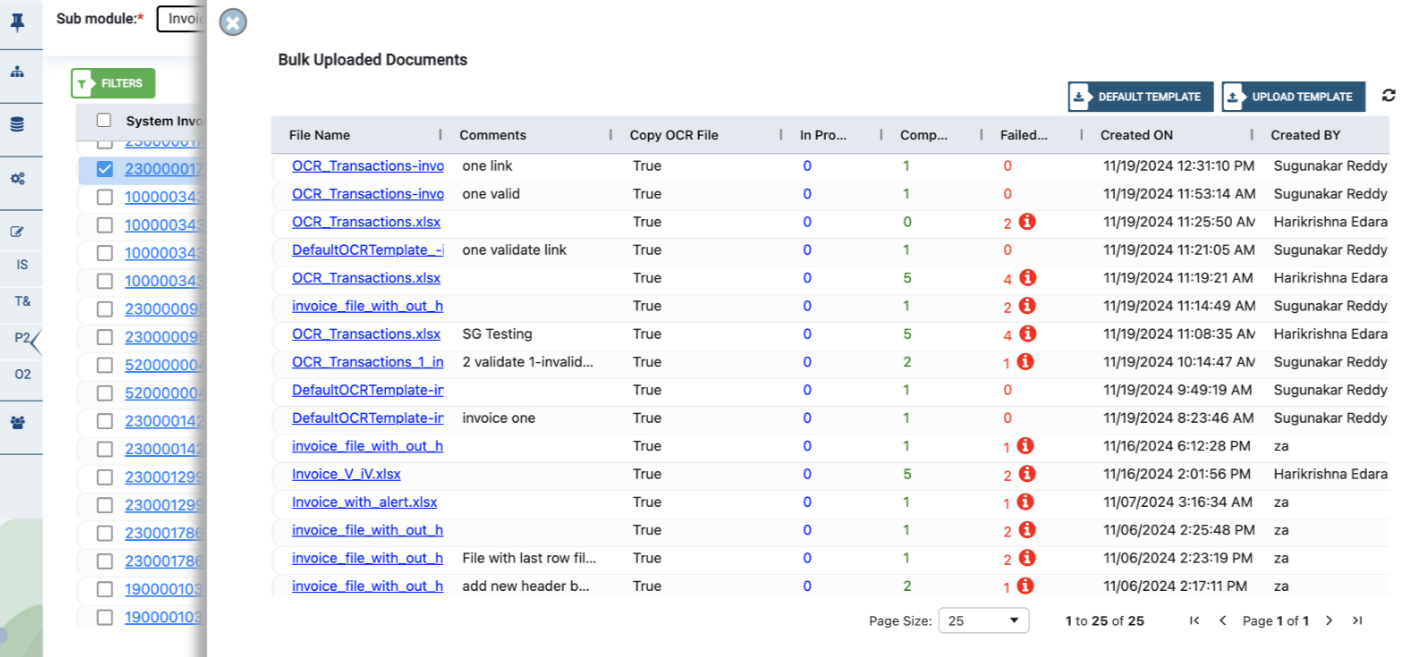
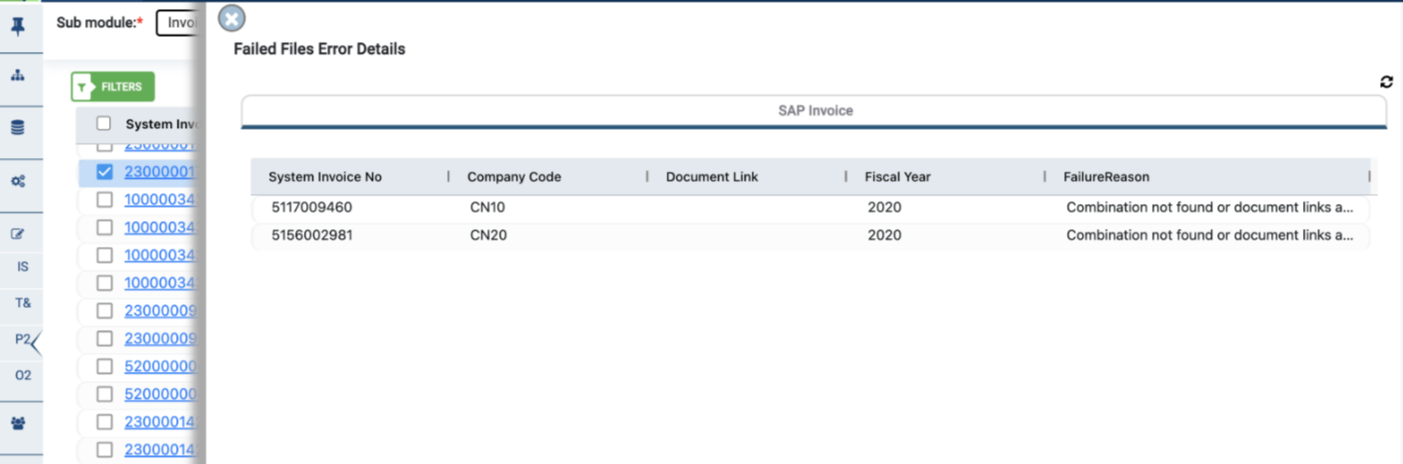
Note: OCR navigation is available for all status options - Completed, In Progress, and Failed. Clicking on any status will navigate to a slider view containing detailed information.
Editing the Extracted OCR Document
To view or edit a specific document, click on the associated drop down.
The tabular representation of your extracted OCR document is shown on the left side of the screen while the right side shows a preview of the uploaded document.
Edit the individual fields or delete fields to customize the document for analysis.
Select the ‘Reprocess’ button in the top-right corner of the document work area to revert all changes made to the fields.
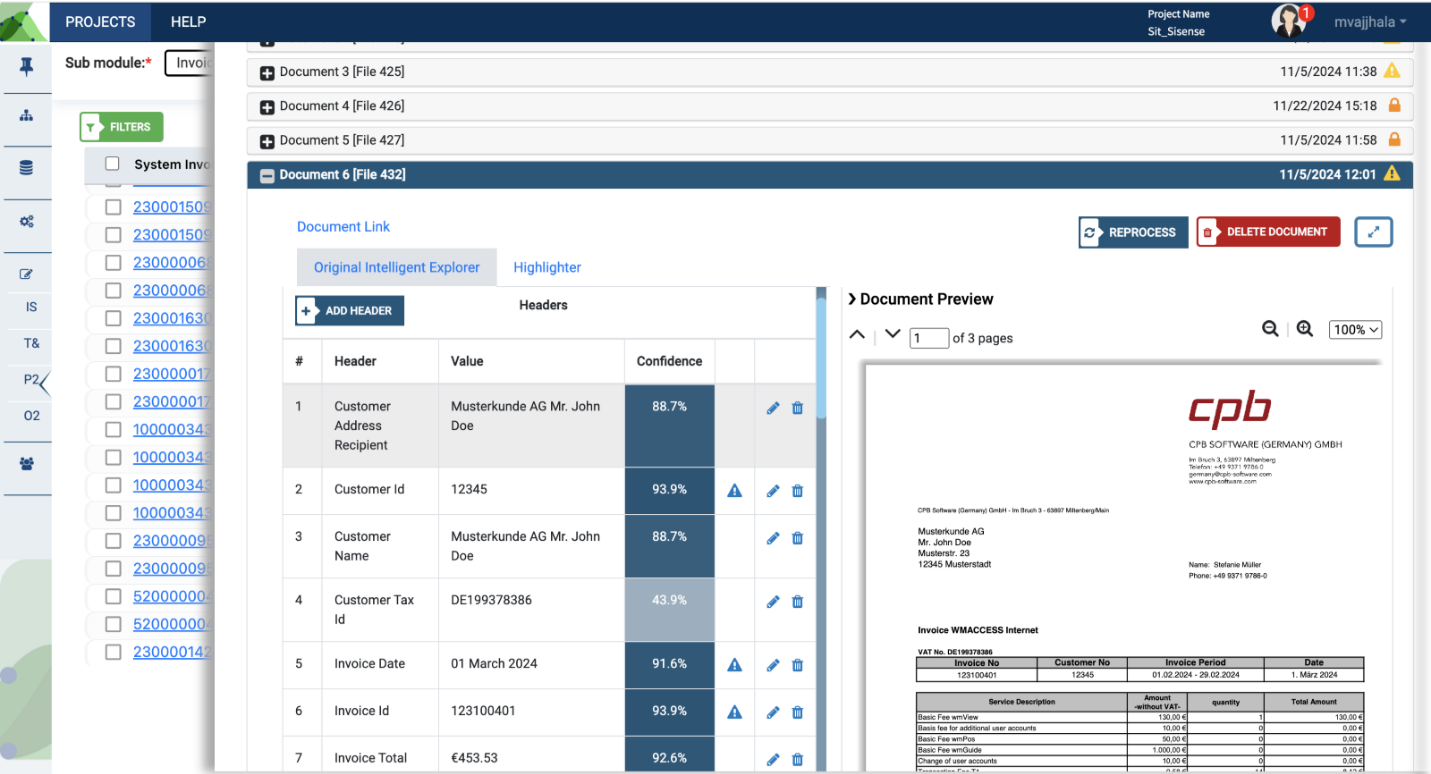
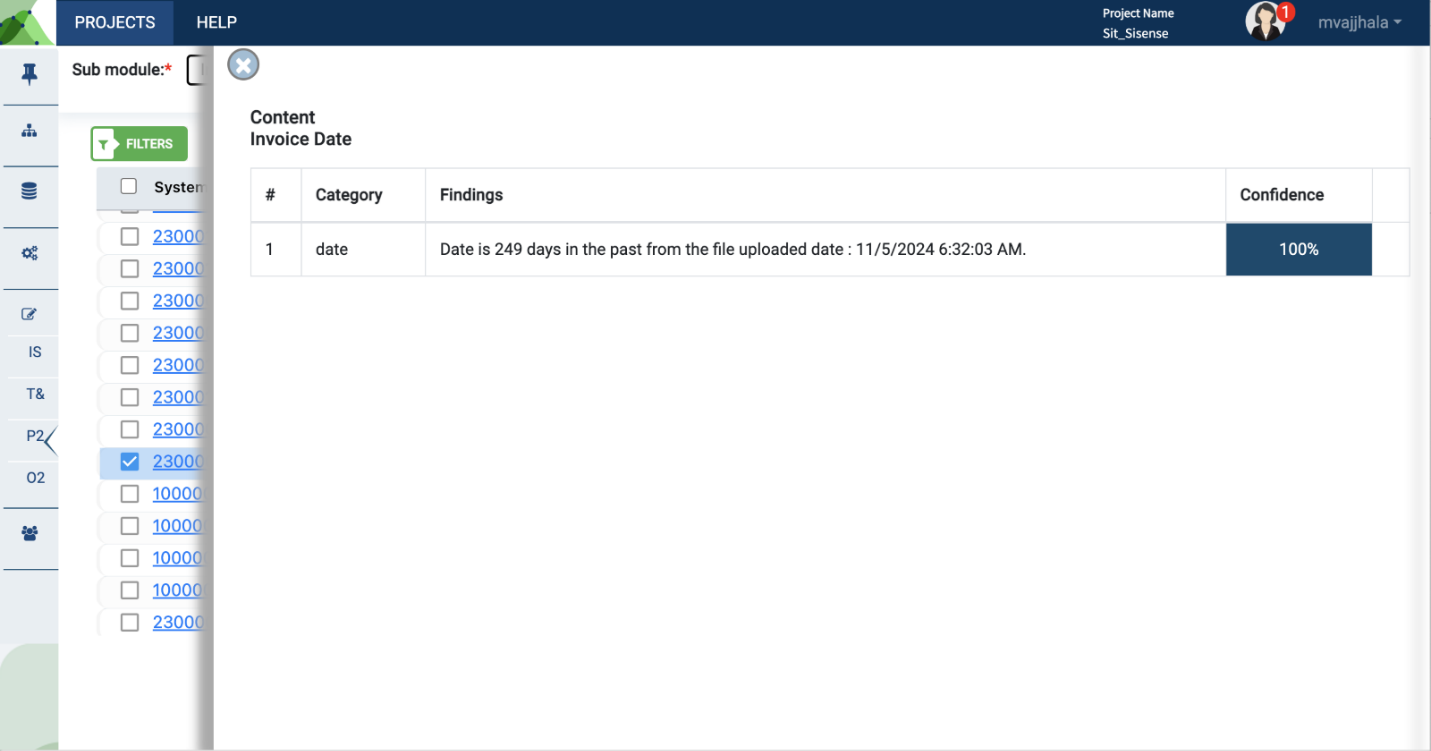
Clicking on the exclamation button in the table will provide further insights into the uploaded OCR document.
Translation to English
konaAI has the ability to read and analyze documents in several languages.
To avail this option, select ‘Translate To English’ button when uploading a document for OCR analysis.
Once the OCR document has been processed, select the tab ‘Document Translation’.
You can now view the English translation on the left-hand side of the screen while the original document is displayed on the right.
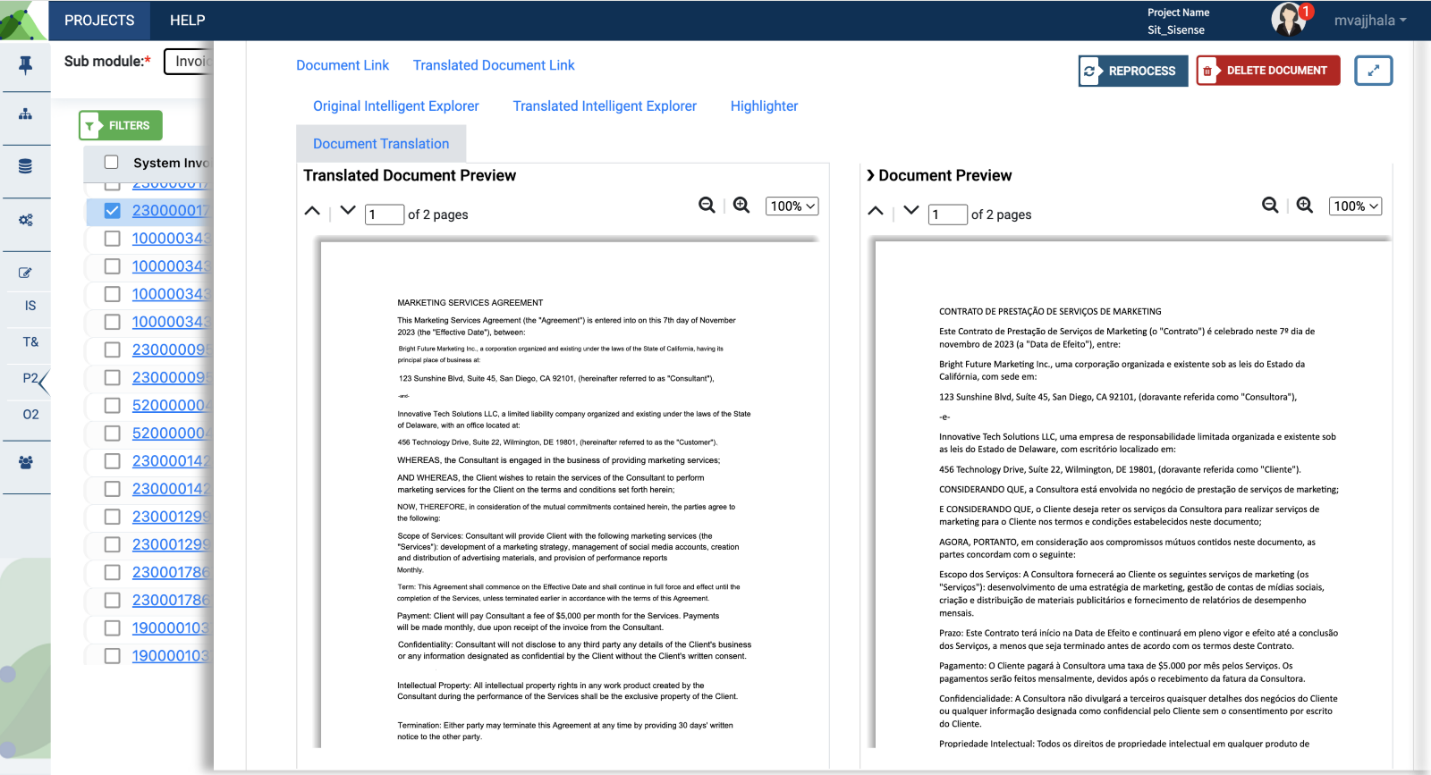
The ‘Translated Document Link’ lets you download a copy of the translated document.
The ‘Highlighter’ tab on your document work area shows the list of applicable keywords and helps identify any fraudulent/risky transaction(s).